
Crisis-X user journey
A structured, screenshot-backed guide for both standard users and admins—from sign-in through live monitoring, escalation, analytics, QA, and reporting.
New User Journey
- 1
Sign in and enter the command center.
- 2
Review active risk, freshness, and current case context.
- 3
Move into Signals to watch live mentions and filter the stream.
- 4
Escalate to War Room when coordination or approvals are needed.
- 5
Use Analytics to monitor attribution, trends, and source mix.
- 6
Export Reports to brief stakeholders and document outcomes.
End-to-end workflow
From access to reporting
01 · Access
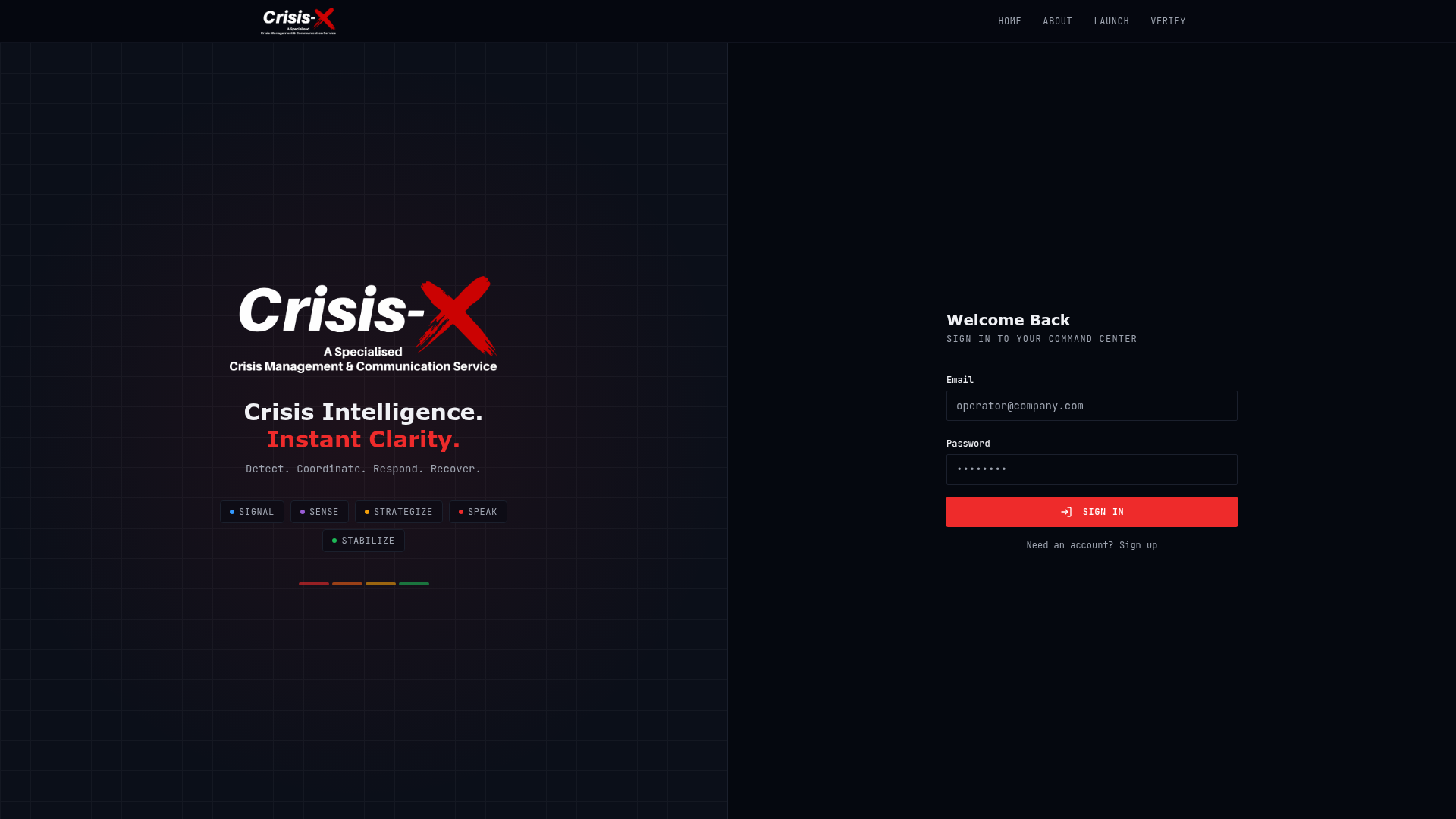
Sign in and reach the workspace
Purpose
Authenticate users and route them into the operational workspace with the right permissions.
What to do
Use your work email and password on the sign-in screen. After authentication, the app redirects into the command center.
What to expect
You’ll see a branded sign-in screen, then the app shell with the sidebar, top bar, and live workspace modules.
Why this matters
This is the start of both the standard-user and admin/operator journey, and it establishes role-aware access to the rest of the platform.
02 · Orient
Use the command center as the operational home base
Purpose
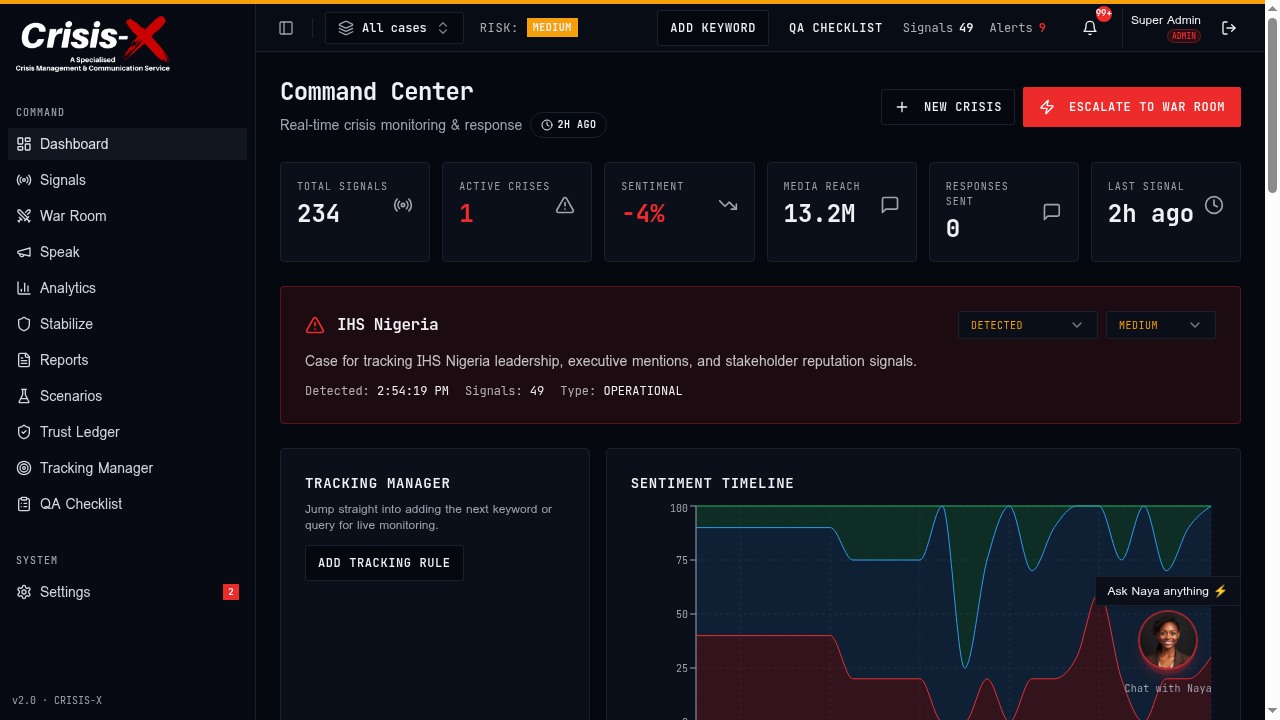
Give users a fast read on signal volume, active crises, freshness, and the next recommended action.
What to do
Start on the dashboard to review the active case, KPI cards, freshness badge, and quick access into Tracking Manager or War Room.
What to expect
You’ll see high-level metrics, the current case summary, and shortcut actions that move you deeper into live operations.
Why this matters
The dashboard anchors daily work and helps teams decide whether to monitor, escalate, or report.
03 · Monitor
Track live mentions in Signals
Purpose
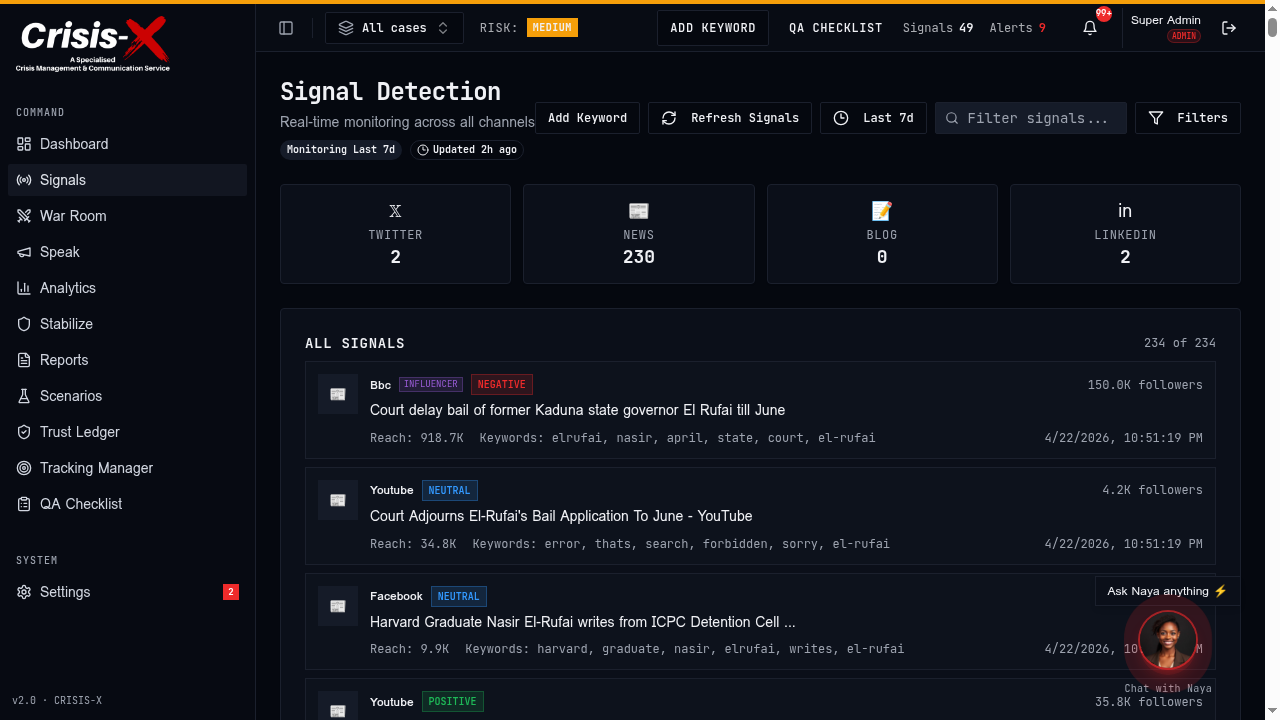
Let operators inspect raw mentions, filter by source or sentiment, and validate that live monitoring is current.
What to do
Open Signals to review the live stream, apply filters, and use the monitoring window or refresh control when you need to narrow the view.
What to expect
You’ll see recent mentions with source metadata, sentiment, follower reach, and visible freshness cues.
Why this matters
Signals is where teams confirm whether a story is growing, who is amplifying it, and what needs escalation.
04 · Coordinate
Escalate into the War Room
Purpose
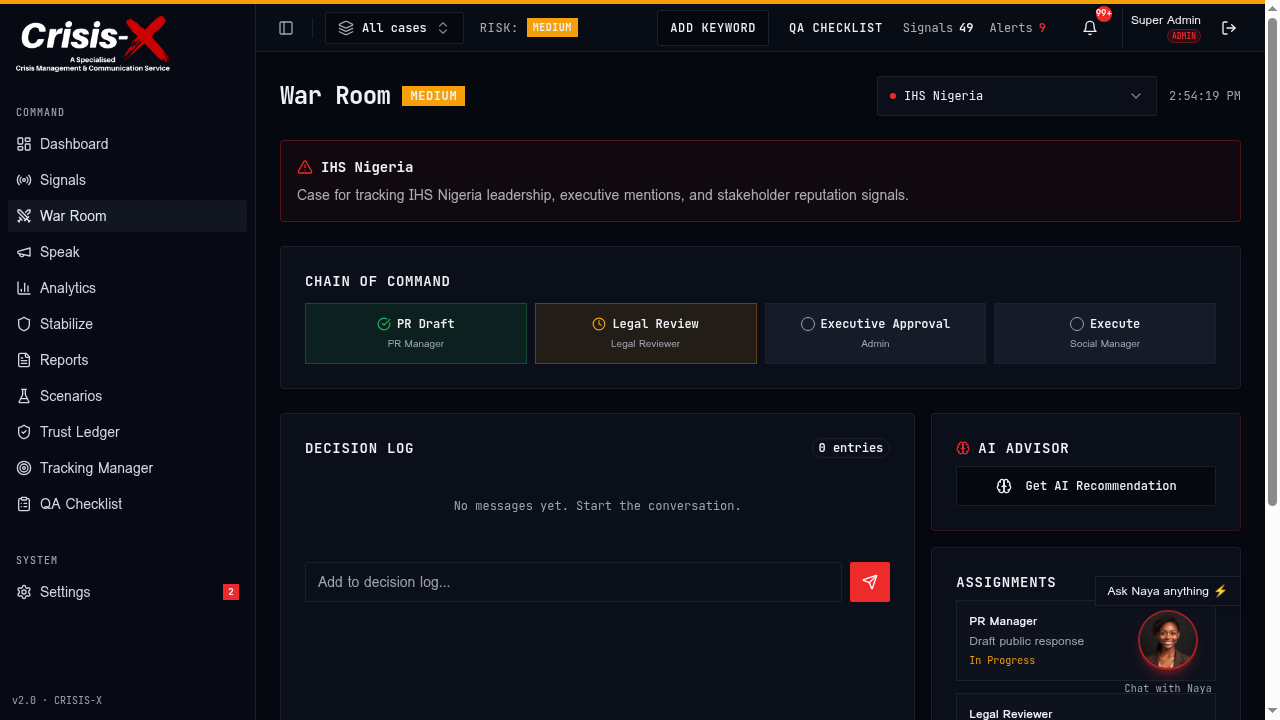
Coordinate cross-functional response work, keep a decision trail, and move through the approval chain.
What to do
When a case needs response coordination, open War Room, confirm the active case, and start logging decisions or requesting AI guidance.
What to expect
You’ll see case context, the chain of command, a decision log, and role-specific assignments.
Why this matters
War Room turns monitoring into action by giving PR, legal, exec, and social teams a shared operating space.
05 · Analyze
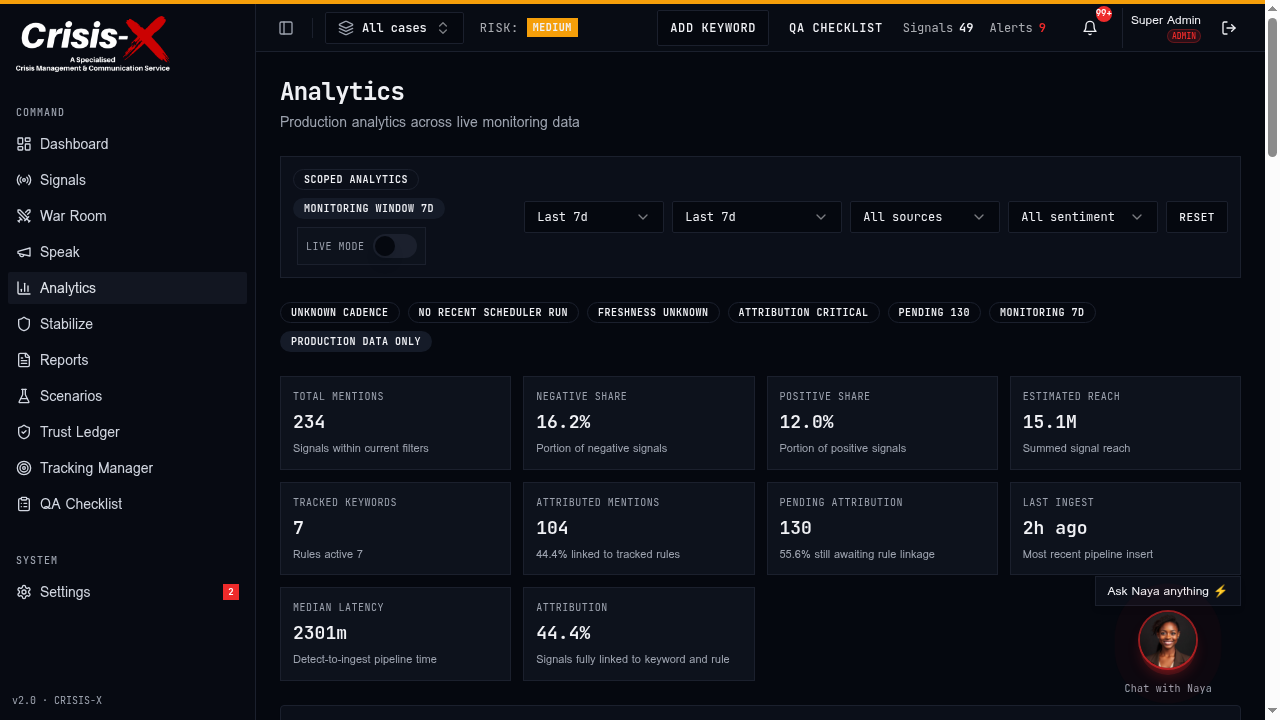
Review live analytics and attribution health
Purpose
Help teams understand volume, sentiment, coverage, and whether tracking rules are attributing mentions cleanly.
What to do
Use Analytics to inspect scoped metrics, live mode, attribution status, and the latest KPI breakdown for the current monitoring window.
What to expect
You’ll see KPI cards, status badges, and real-time visibility into attributed versus pending-attribution mentions.
Why this matters
Analytics makes live monitoring measurable and shows whether the data is trustworthy enough for executive reporting.
06 · Report
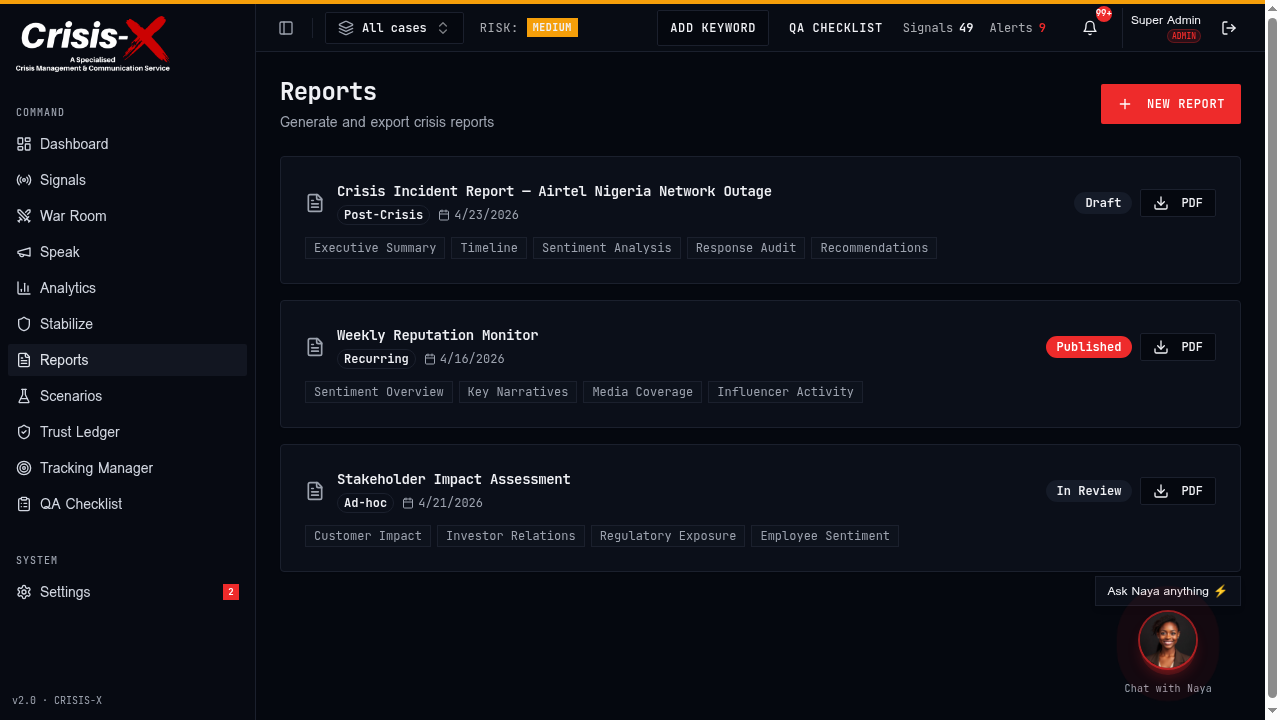
Export stakeholder-ready reports
Purpose
Package the current crisis state into shareable outputs for leadership, legal, or recurring reporting.
What to do
Open Reports to review existing report templates, create a new report, and export PDF outputs for circulation.
What to expect
You’ll see report cards, status labels, included sections, and one-click export actions.
Why this matters
Reporting closes the loop between monitoring, response, and stakeholder communication.
Admin operations
Setup, QA, and governance
A1 · Configure
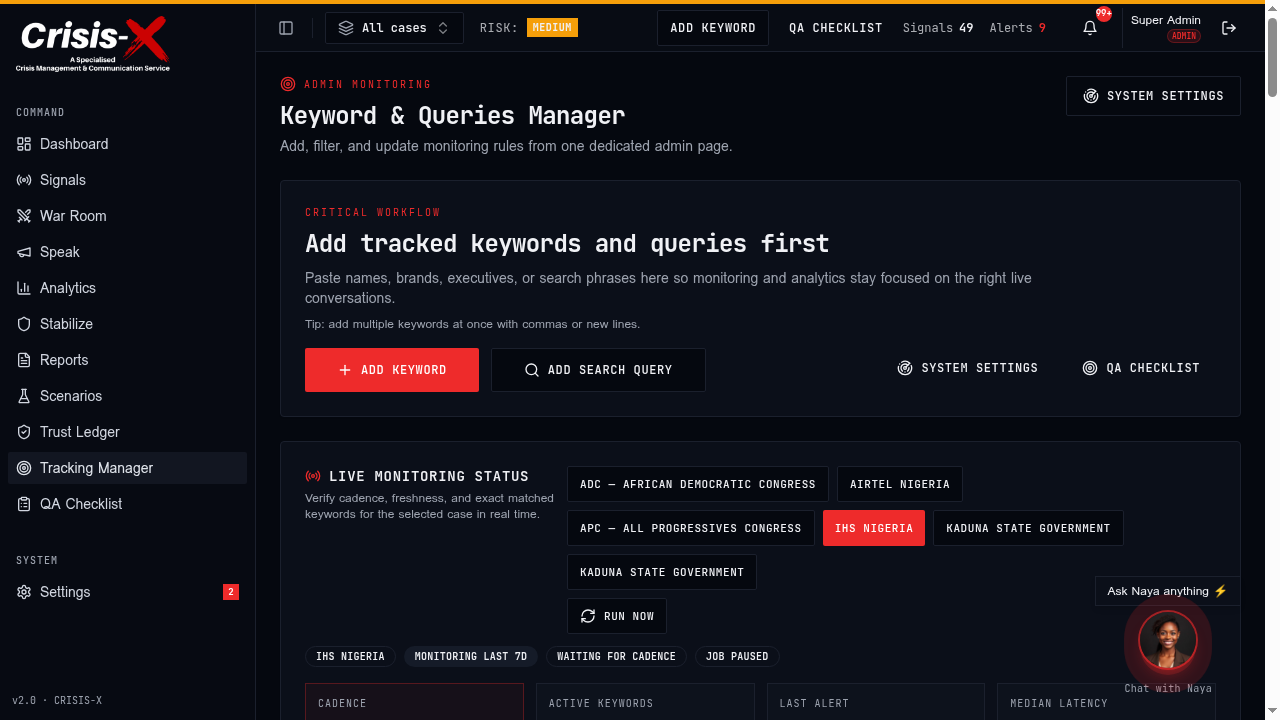
Set up tracked keywords and search queries
Purpose
Admins define what the platform should look for so live monitoring stays aligned to brands, executives, and topics.
What to do
Open Tracking Manager, add tracked keywords or search queries, and keep them organized by case.
What to expect
You’ll see an admin-focused page for creating, filtering, and maintaining monitoring rules.
Why this matters
Good rule setup is what makes later Signals, Analytics, and QA outputs relevant.
A2 · Validate
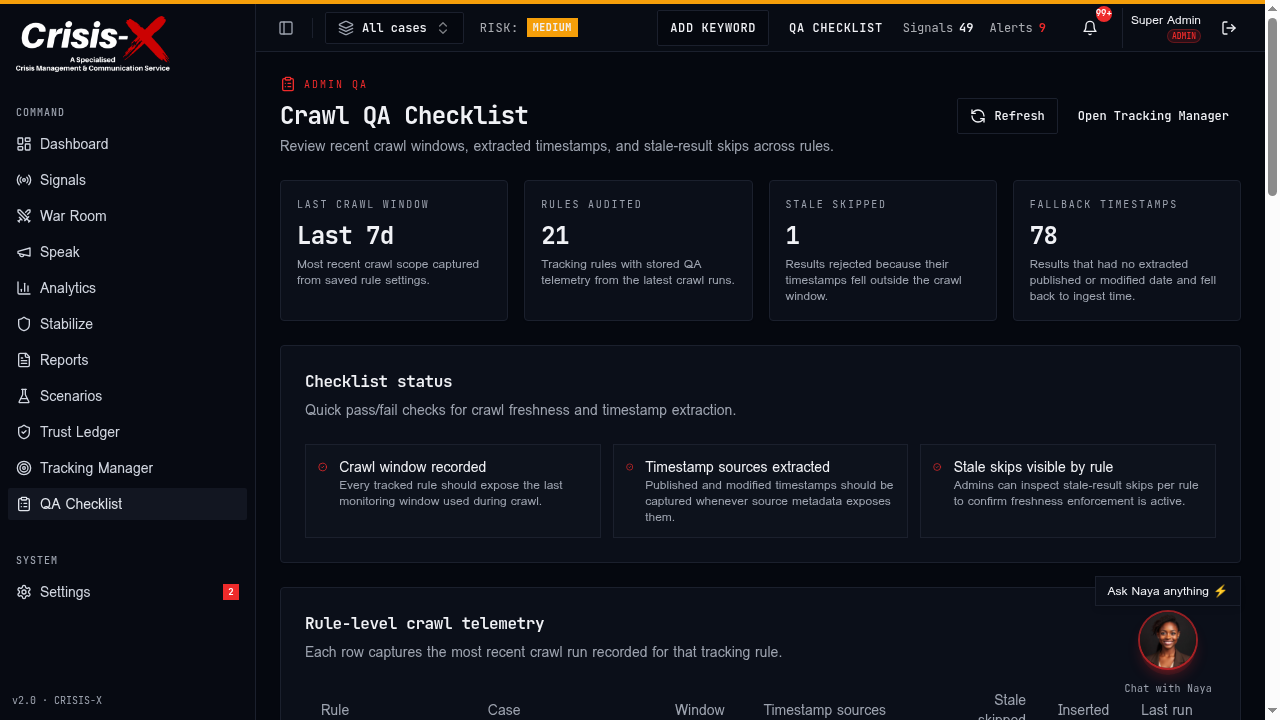
Audit crawl quality and freshness enforcement
Purpose
Show admins which crawl window was used, where timestamps came from, and how many stale results were rejected.
What to do
Use the QA Checklist to review per-rule crawl telemetry and confirm freshness enforcement is active.
What to expect
You’ll see summary cards, pass/fail checklist items, and a rule-level table for timestamp-source extraction and stale skips.
Why this matters
This is how operators prove that old stories are not being surfaced as current data.
A3 · Govern
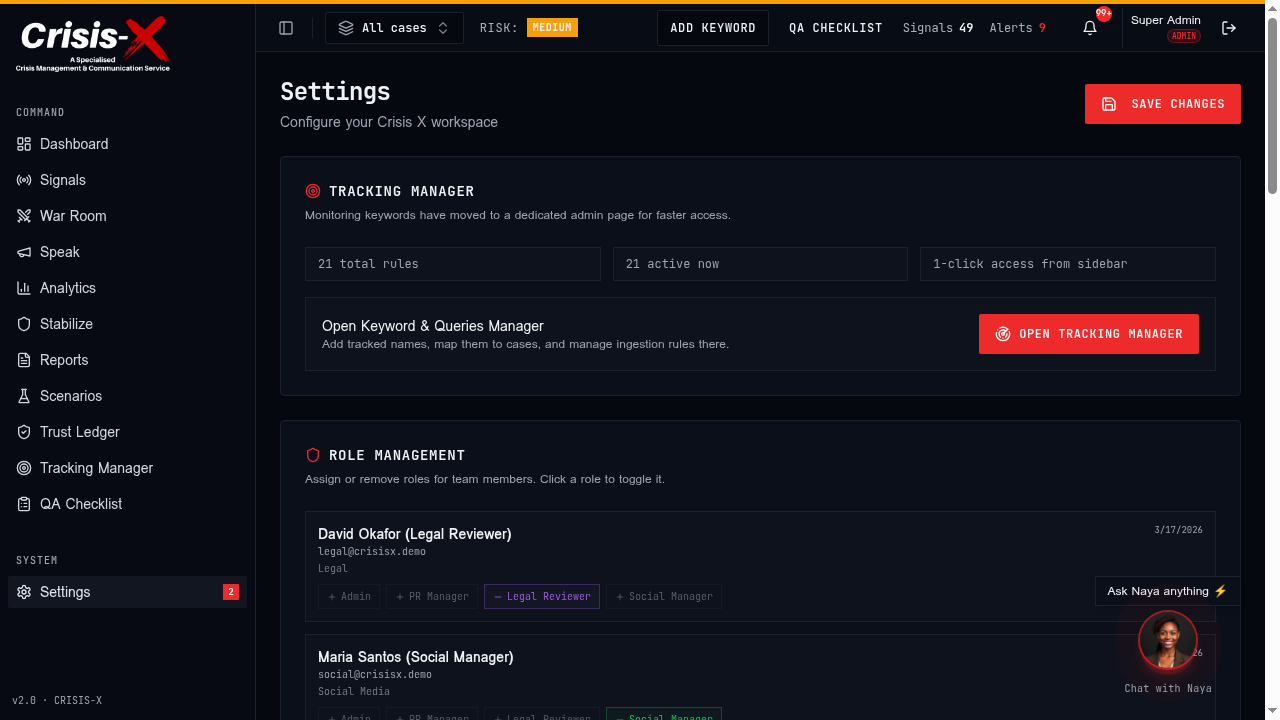
Manage roles and workspace controls
Purpose
Admins maintain team access, notification behavior, and workspace-level configuration from one place.
What to do
Use Settings to open the tracking workspace, assign or remove roles, and keep operational controls current.
What to expect
You’ll see role-management controls alongside workspace configuration cards and quick links into admin tools.
Why this matters
Settings keeps the platform governable as more teams join active crisis response work.
Recommended daily operating rhythm
Start with freshness
Open the dashboard or Signals first, confirm the active case, and verify that the latest mention timing aligns with expectations.
Monitor the feed
Watch Signals for spikes, emerging narratives, and influential authors. Escalate fast when sentiment turns or reach expands.
Check attribution quality
Use Analytics to separate live mention volume from pending attribution so the team knows whether rule-linking needs attention.
Close the loop
Admins should validate the QA Checklist, then create or export Reports for internal and stakeholder briefings.